Spikefrost Onboarding
You have been added to the team. Every step from first sign-in to first change.
Spikefrost at a glance
Four concepts are enough to read the whole interface.
| Concept | What it means |
|---|---|
| Team | The boundary of access and billing. You are invited into a team and you see that team’s apps. The top bar shows which team you are in; if you belong to several, you switch there. |
| App (project) | One product. Its web app, agents, data, files and release history all live inside the same App. Every App has a name and an id (e.g. EXP / proj-27d3a625). |
| Agent | The AI that works for you. You meet it in two places: the Claude chat that builds your app (the Build tab) and the agents installed inside your app (the Agents tab). |
| Connector | Your app’s door to the outside world: Slack, email, web form, on-site chat, webhook. Managed from Connectors in the top bar. |
You never have to write code. To change the app you write what you want into the Build chat; Claude does the rest and you see the result on the live address.
First sign-in — from invitation to an “Active” user
There is no password. Every sign-in uses a one-time code sent to your email.
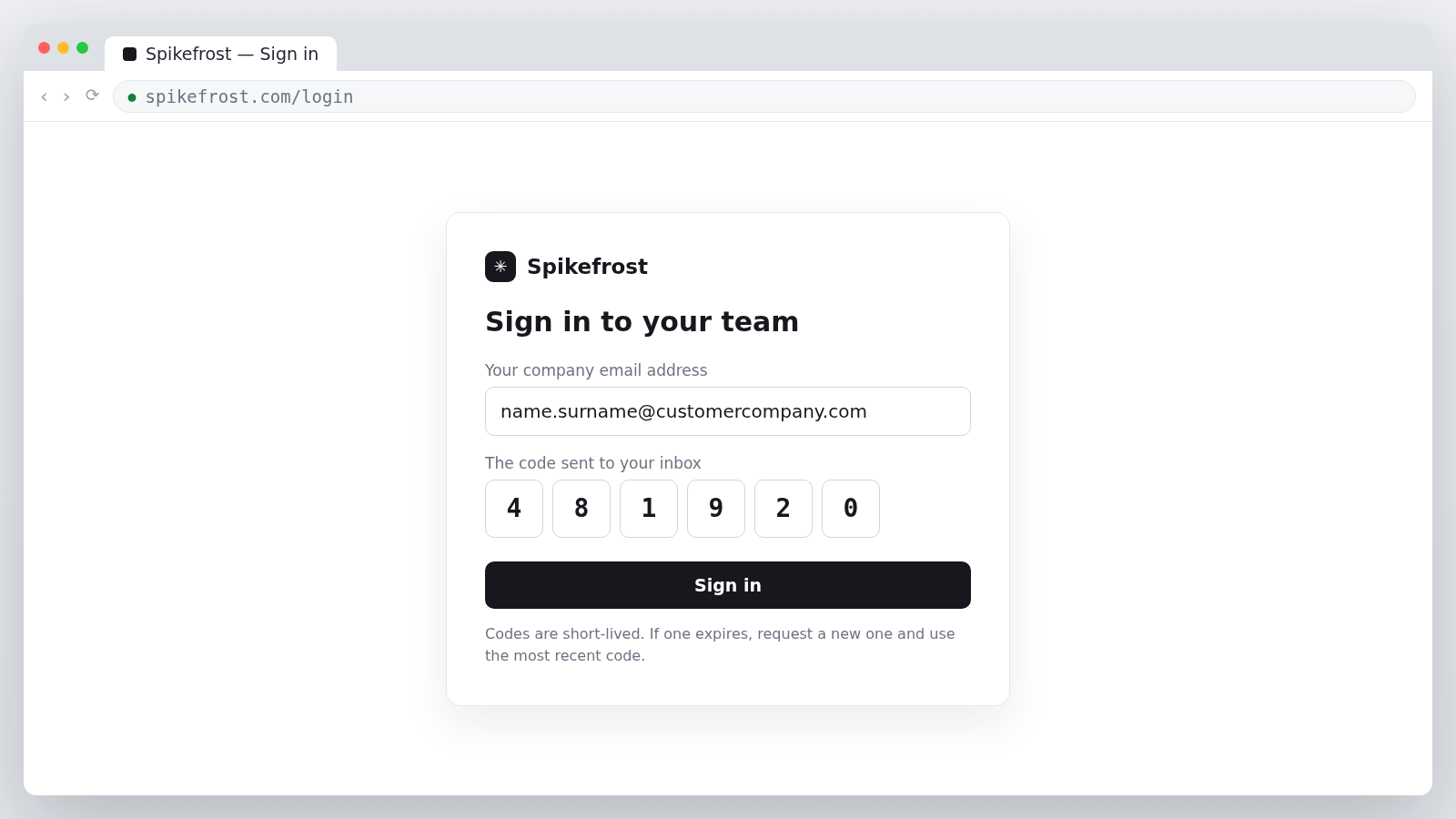
- 1Open the link in the invitation email
When you are added to the team with your company email address, Spikefrost sends you a “You have been added to the … team” message.
- 2Enter your company email address
The invitation is bound to that address. A personal address (Gmail, etc.) will not connect you to the team.
- 3Enter the one-time code
A code arrives in your inbox; enter it to continue. Codes are short-lived — if one expires, request a new one and use the most recent code.
- 4Your account becomes “Active”
On success the team’s apps appear. Every later sign-in uses the same email + code step.
No email? Check spam/junk and any corporate mail filters first. Ask your team admin to confirm the address was entered correctly.
Sessions expire after a while. If you see “Session expired”, sign in again with the same email + code — nothing is lost.
Getting to know the screen
Spikefrost runs in your browser. There are three layers: the top bar, the app header, and the app tabs.
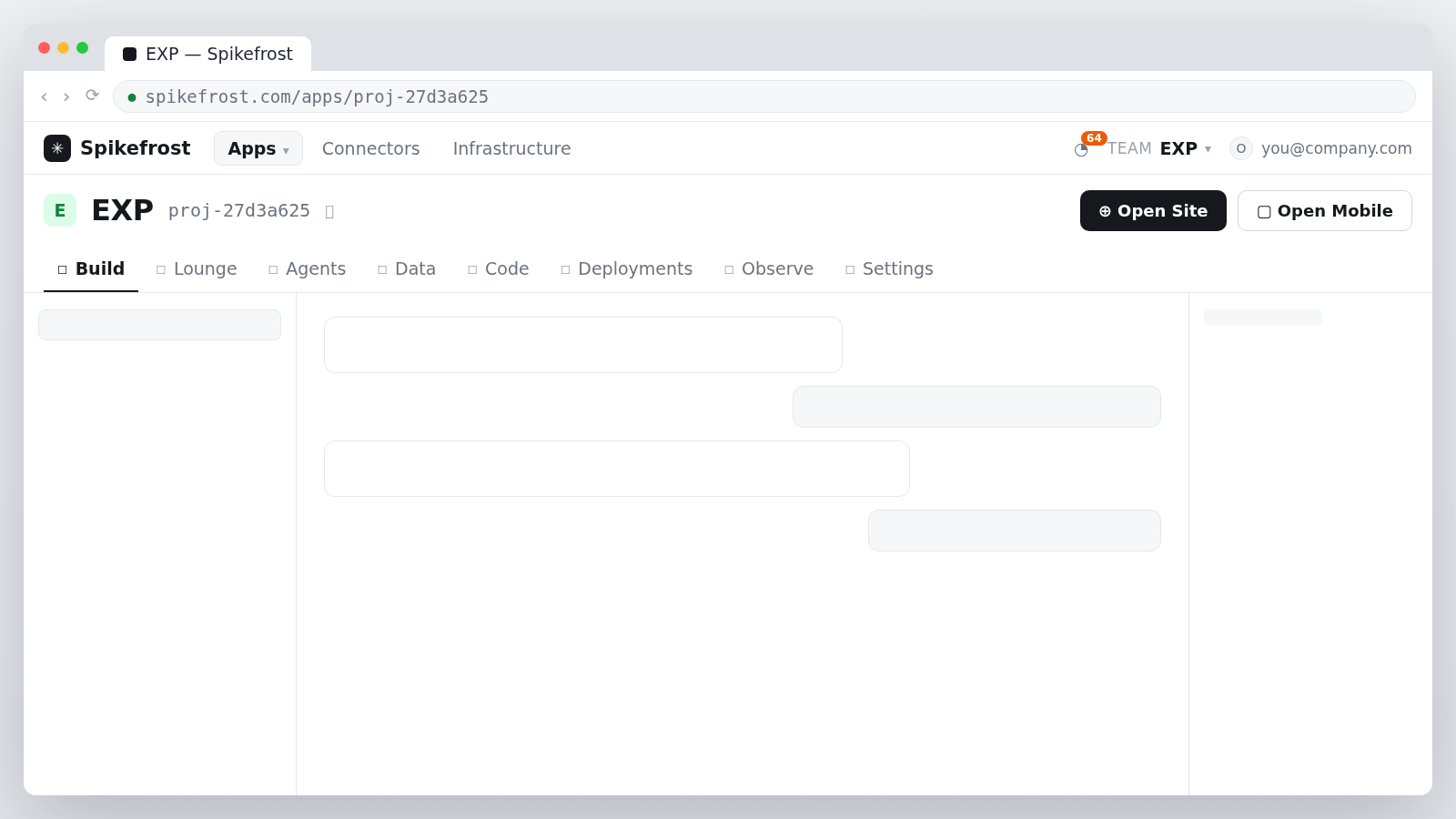
Top bar — for the whole team
| Item | What it does |
|---|---|
| Apps | The team’s list of apps. This is your first stop after signing in. |
| Connectors | Connections like Slack, email, forms and webhooks, plus the accounts you have authorized. |
| Infrastructure | The infrastructure side: database, storage and the machines that run work. |
| Notification bell | Finished jobs, releases and events that concern you. |
| TEAM <name> | Which team you are in. If you belong to several, you switch here. |
| Your email address | The account menu; sign out from here. |
App header
- The app’s name and its id next to it (e.g. proj-27d3a625) — press the copy button beside the id and include it in support messages; that is the fastest route to a fix.
- Open Site — opens the live app in a new tab. This is the screen your customers see.
- Open Mobile — opens the mobile client, if there is one.
App tabs
| Tab | What it is for |
|---|---|
| Build | Where you build the app by chatting with Claude. Most of the day-to-day work happens here. |
| Lounge | The team’s shared space around the app. |
| Agents | The agents inside your app: what they do, their conversations and their status. |
| Data | Your app’s database: tables and records. |
| Code | Your app’s files. Feel free to read them; asking for changes in the Build chat is safer. |
| Deployments | Release history: when each version shipped and what it carried. |
| Observe | Live request logs and metrics — the first stop when something goes wrong. |
| Settings | App settings: domain, environments, access and security. |
Where do I find my projects?
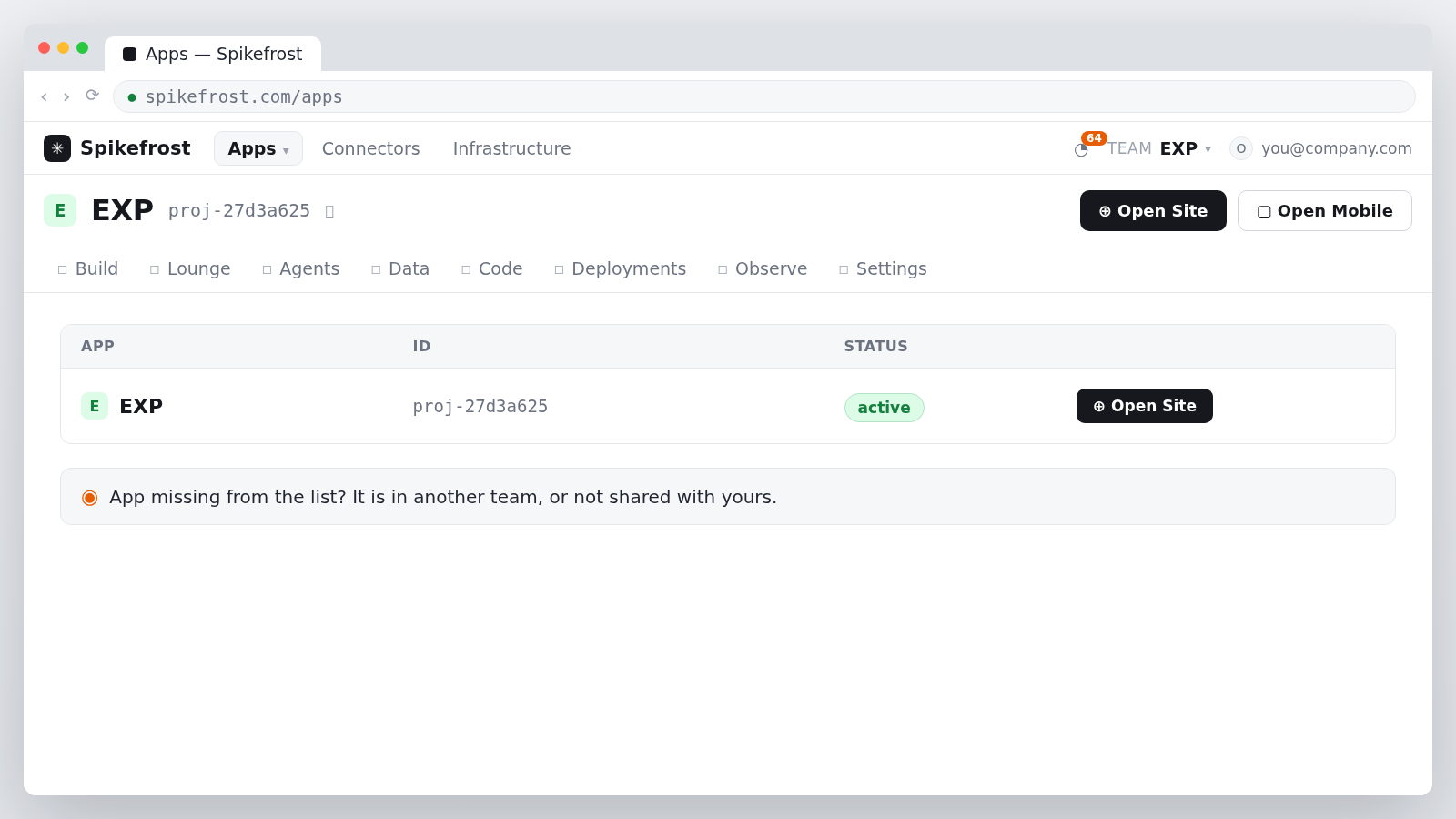
The Apps section in the top bar lists every app in the team. When you open one, everything belonging to it (chat, agents, data, files, releases, logs) is under one roof.
- Name and id — e.g. EXP / proj-27d3a625. The id is the same everywhere and never changes.
- Status — active means the app is running.
- Live address — the Open Site button opens it. A deployed app’s address follows this shape: https://worker-<id>.spikewebsite.com
- Custom domain — if you have attached your own domain, that becomes the live address.
If an app you expect is missing, there are two reasons: it lives in another team, or it has not been shared with the team. Ask your team admin to share it.
Build — getting work done by talking
The single most important habit of onboarding: write what you want into the Build chat.
| Item | What it does |
|---|---|
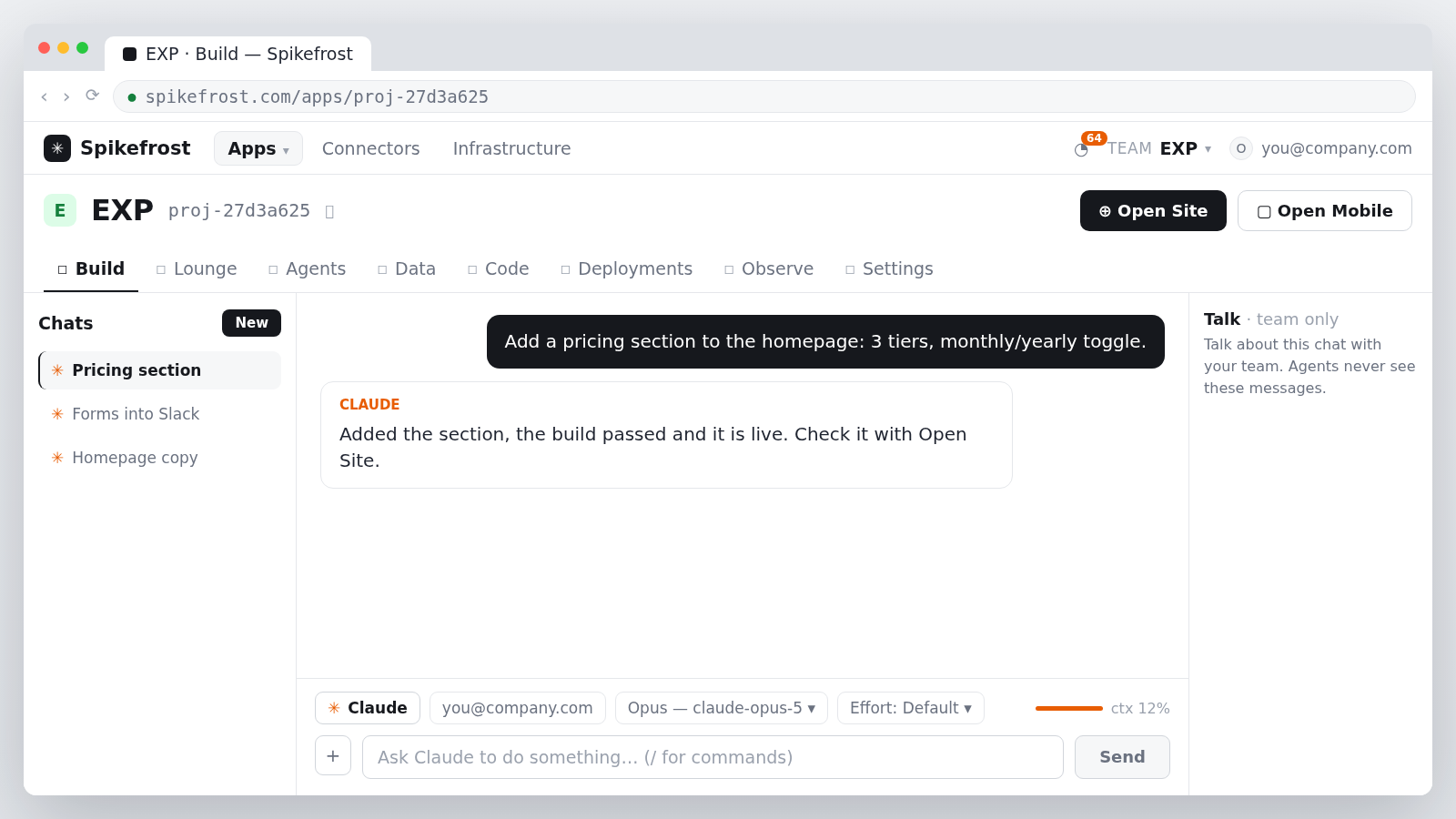
| Chats list | Your ongoing conversations. Start a separate one with New for each new piece of work — topics stay clean. |
| Conversation area | You write your request; Claude edits files, builds and ships. It narrates what it did, step by step. |
| Provider and account | The left of the composer bar shows which provider (Claude / Codex) and which account you are working with. |
| Model and Effort | Which model works on it, and how much thinking effort it spends. The defaults are fine for daily work. |
| ctx indicator | How long the conversation has grown. When the percentage climbs, starting a new chat is the best move. |
| Talk · team only | The right-hand panel is an internal note area: agents never see these messages. Use it to talk among yourselves. |
What makes a good request?
Describe the outcome, not the steps. Say what you want to achieve and any constraints that matter.
- Good: “Add a pricing section to the homepage: 3 tiers, monthly/yearly toggle.”
- Good: “Send form submissions to the #sales channel in Slack.”
- Unnecessary: “Open index.tsx and add a div on line 42.” — you do not need to know file names.
Every change is versioned and every release is recorded. If something goes wrong, saying “undo the last change” is enough.
How do I connect my Claude / Codex account?
The model driving the Build chat is your own provider account. There are two paths.
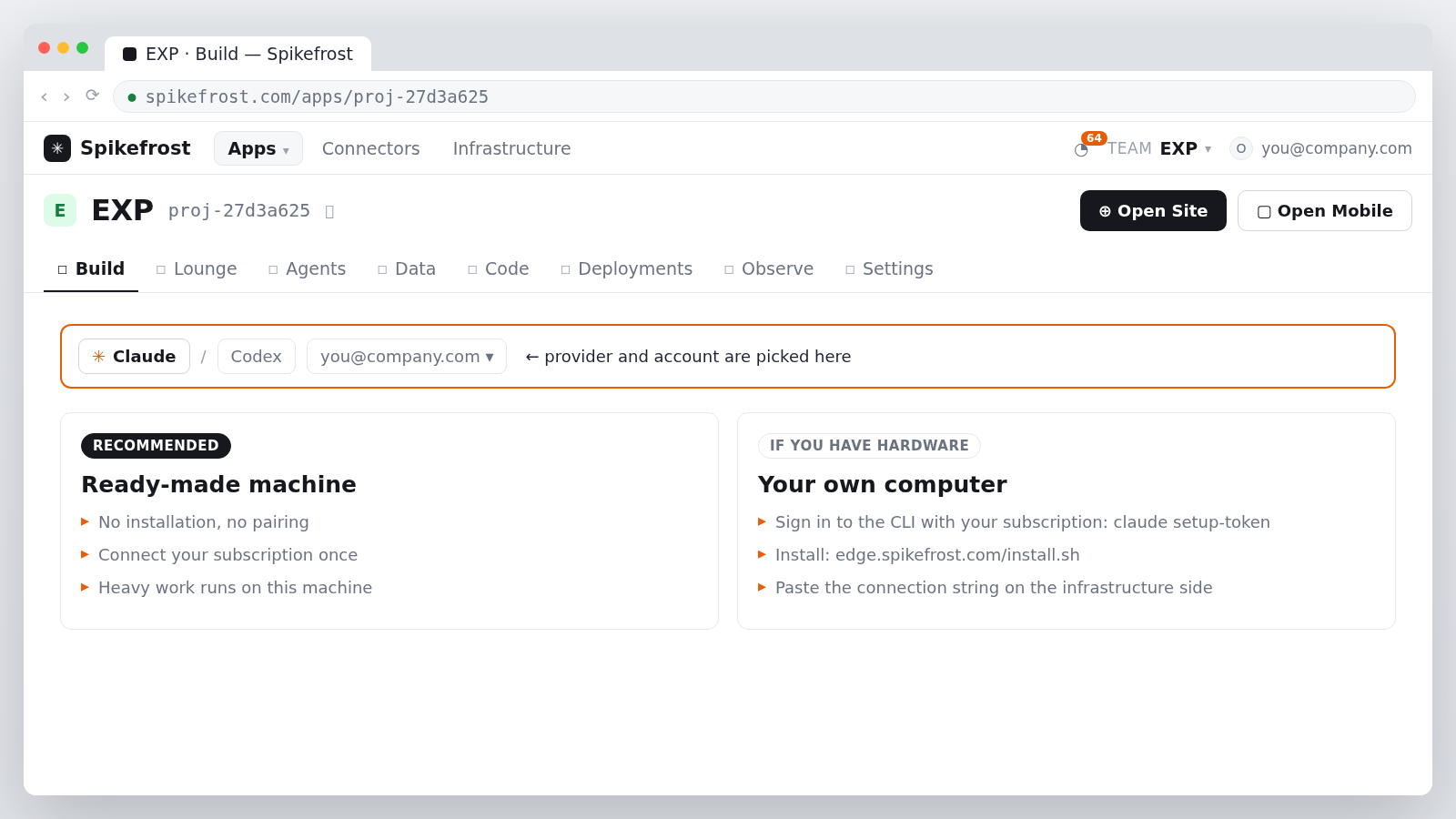
Path 1 — the account selector in the Build chat
In the Build tab, the left of the message composer shows the provider (Claude / Codex) and the account in use. You connect your account there, and pick between accounts in the same place. It is a one-time connection; later chats reuse it.
Path 2 — running the work on a machine
Heavy work such as large codebases runs on a machine, driven by the Claude Code or Codex CLI installed there. With no hardware of your own, a ready-made machine operated by Spikefrost is created for you (no installation, no pairing — you connect your subscription once). To use your own machine instead:
- 1Sign in to the CLI on that machine with your own subscription
claude setup-token for Claude, codex login --device-auth for Codex.
- 2Install Spike Edge Node
When the installer finishes it prints a connection string shaped like spike-edge-node://connect?token=… — you paste it in the next step.
- 3Register the machine with Spikefrost
On the infrastructure side, create a cluster in the machines section, add the machine to it, paste the connection string and save.
curl -fsSL https://edge.spikefrost.com/install.sh | shSecurity rule: never type your Claude, Codex or GitHub passwords into an arbitrary screen. Those accounts are signed in either through a first-party connection screen or on the machine itself; your subscription credentials are not handed to Spikefrost.
Connecting is not the same as granting. A freshly connected machine can reach nothing until the agent commanding it is explicitly granted access. “It connected but it can’t do anything” is this — tell us and we will set the grants.
Where do I see connectors?
The Connectors section in the top bar holds every connection your app has to the outside world.
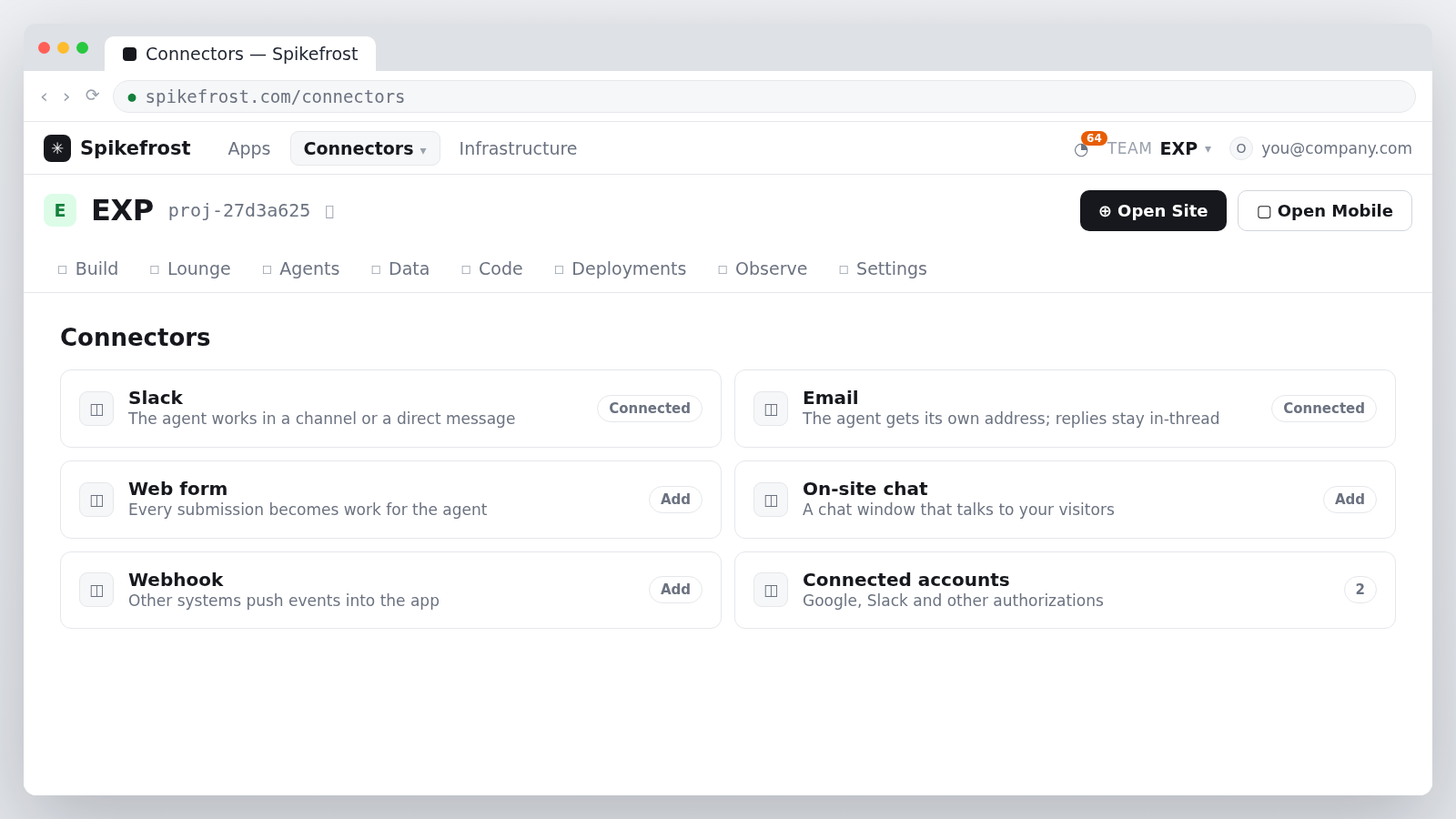
| Connector | What it is for |
|---|---|
| Slack | The agent works in a channel or a direct message; notifications and requests flow there. |
| The agent gets its own address. Incoming mail wakes it and replies stay in the same thread. | |
| Web form | Put a form on your site; each submission becomes work for the agent. |
| On-site chat | A chat window that talks to visitors on your website. |
| Webhook | Another system pushes events into the app. |
| Connected accounts | Accounts you have authorized, such as Google or Slack, are listed in the same place. |
To add an integration, all you do is write it in the Build chat: “route incoming forms to the Slack #sales channel”. Claude performs the setup; you are only asked to authorize the account.
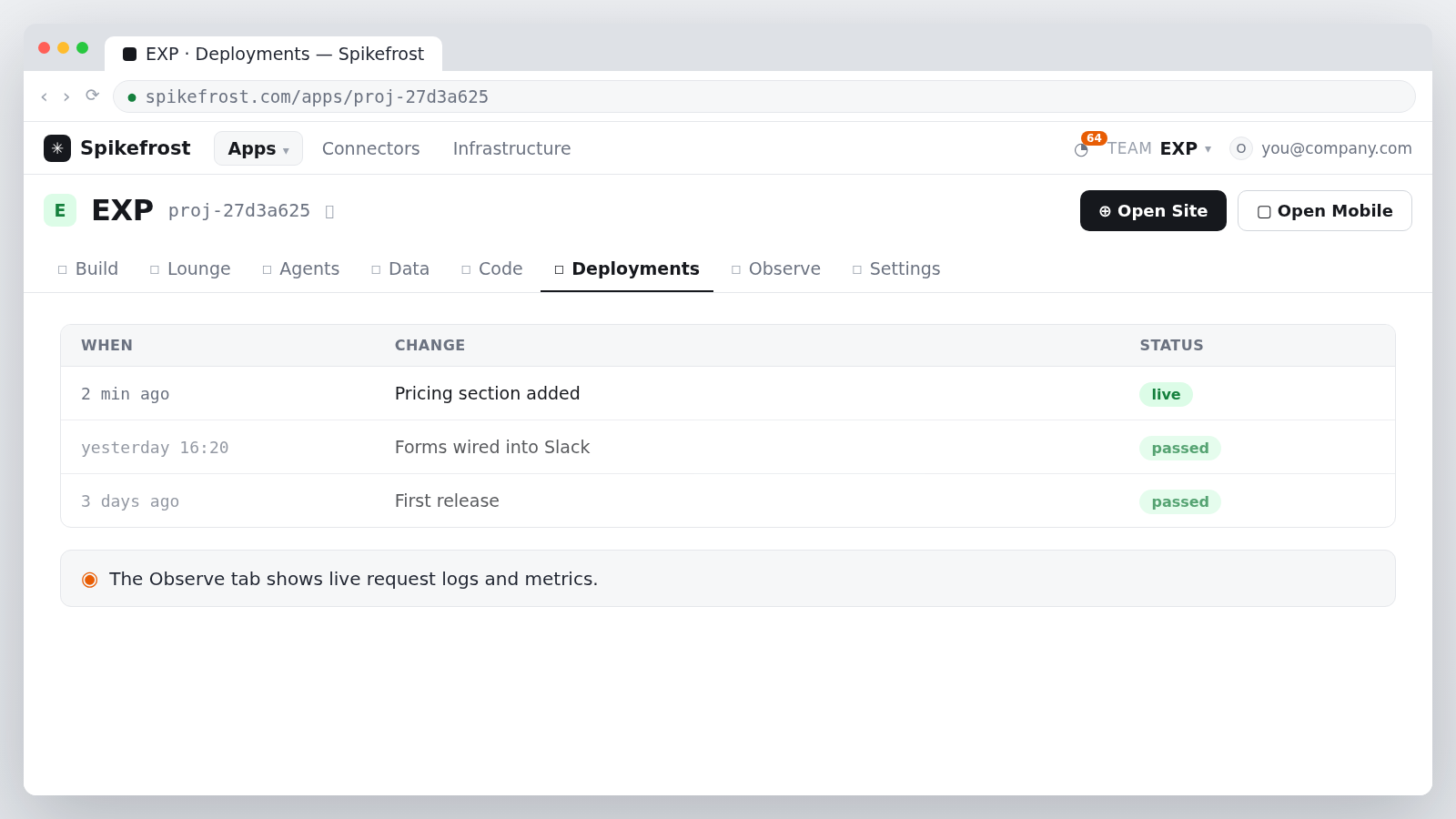
Following releases and errors
| Where | What you see |
|---|---|
| Deployments | A record of every release: when it shipped and what change it carried. If something breaks, an earlier version can be restored. |
| Observe | Live request logs and metrics. The first place to look when you say “the page is erroring”. |
| Settings | Domain, environments, access and security settings. |
| Data | Your app’s tables and records. |
| Agents | Agent status and conversations — this is where you read what an automation actually did. |
By default there is a single live environment (production). Separate environments can be opened for demo/testing so changes are tried out before customers see them.
Sharing files
When you need to send us a brand guide, price list, screenshot or sample data, use the team’s file library. Agents can read whatever you drop there, and reports produced for you are handed back in the same place.
- In chat you can say “work from this file” — naming the file is enough.
- Uploading under the same name creates a new version; the old one is not lost.
- This library is separate from your app’s source files, so large files do not eat into the app’s storage limit.
Your role: what you can do as an operator
You were added to the team as an operator. All of the day-to-day work is yours: seeing the apps, requesting changes in the Build chat, using connectors and files, and watching releases and logs.
Team administration (inviting new users, billing, deleting the team) stays with the team owner. If you need a permission you do not have, write to us.
Frequently asked questions
- Where do I change my password?
- There is no password. Every sign-in uses a one-time code sent to your email.
- The code does not arrive, or is rejected.
- Codes are short-lived and only the most recent one works. Request a new code; if it still does not arrive, check spam and your corporate mail filters.
- I see “Session expired”.
- Your session timed out. Sign in again with the same email + code; nothing is lost.
- I signed in with the wrong email and cannot see the team.
- The invitation is bound to your company email. Sign out and sign in with the address that received the invitation.
- Can a change be undone?
- Yes. Every change is versioned and every release is recorded, so an earlier version can be restored. Saying “undo the last change” in the Build chat is enough.
- Where is my app’s live address?
- The Open Site button in the app header opens it. The shape is https://worker-<id>.spikewebsite.com — if you attach your own domain, that address takes over.
- Can we attach our own domain?
- Yes, a custom domain can be added to the app. Send us the domain name.
- Where is our data stored?
- In the app’s own database and file storage. Each app is isolated within its own boundaries; you can see your tables in the Data tab.
- Do I need to know how to code?
- No. Describing the outcome in the Build chat is enough. The Code tab is there for those who want to read the files.
First-week checklist
- Signed in from the invitation email, account is Active
- Opened the app from the Apps list and saw the live address via Open Site
- Requested a first small change in the Build tab and saw it live
- Connected a Claude or Codex account
- Discussed the connectors you need (Slack / email / form)
- Uploaded brand and content files to the team file library
- Took one pass through the Deployments and Observe tabs
- Agreed on the support channel and point of contact
When you get stuck, write to us with a screenshot and your app id — or ask the Onboarding Agent on this site.